
Projects & folders
Moving between projects, tracked repos and worktrees, and per-project instructions.
Each Mel pane works in one folder, and you change it with cd or the directory chip; tracked repositories add one-click git worktrees. The folder is the shell's working directory; the agent works there too, and the chips, the project explorer and code review all follow it. This page covers how to move between projects, keep a list of the repositories you use, and give each project its own instructions.
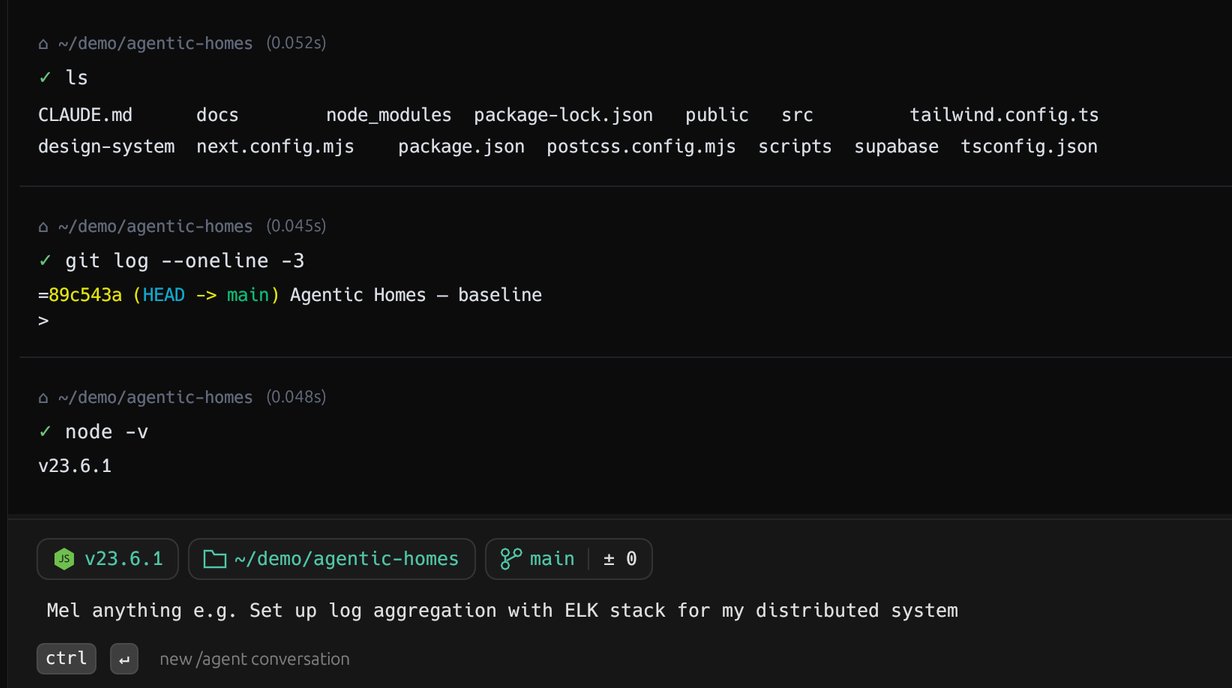
The folder a pane is in
cdin the prompt moves the pane. Only acdthat succeeds moves it, and everything follows: block headers, the chips, the agent's working directory.- The directory chip under the prompt shows where you are. Click it for a searchable list of the folders inside, a ↑ .. (Parent Directory) row, Reveal in file manager, and Choose folder…, which opens your system's folder window. Picking a folder runs a visible
cd, so the move is in your scrollback like any other command. - New tabs open in the folder of the tab you're in, unless a tab config says otherwise.
Tracked repositories and worktrees
Mel keeps a short list of the repositories you work in. Choose Track this repo for worktrees from the + new-tab menu while you're inside one.
Create a worktree
cdinto the repository and choose Track this repo for worktrees from the + new-tab menu (once per repo).- Open the + menu again and choose Worktree: <repo>.
- Mel creates the branch and the checkout, and opens a tab in it. Start an agent there, or run a tab config that asks for a tracked repo.
For a tracked repo, the + menu offers a Worktree entry with the repo's name: Mel picks a new branch name, runs git worktree add into ~/.mel/worktrees/<repo>/<branch>, and opens a tab there. Each worktree is a real checkout on its own branch, so you can run two agents on the same project without them touching each other's files.
Tab configs can ask for a tracked repo as a parameter, so one config opens the same layout in any of your projects. See Tab configs.
The list lives in repos.json in Mel's settings folder (~/.mel on macOS and Linux, %APPDATA%\mel\config on Windows). Repos that no longer exist on disk drop off it by themselves.
Instructions for each project
Put a MEL.md (or AGENTS.md) at the root of a project, and the agent reads it at the start of every turn in that project: how to build, how to test, what not to touch. You can also pin files and notes to a project so they're always in the agent's context. See Rules and MEL.md.
Settings ▸ Indexing and projects
The Indexing and projects page in Settings lists the projects Mel has indexed. The index is prepared for agents, and they don't use it yet: the agent searches your files directly with its own tools.
Limitations
- One pane has one working directory. To work in two projects side by side, split the pane or open another tab.
- Worktrees need git installed.
FAQ
How do I run two AI agents on the same repo without conflicts? Give each its own git worktree from the + menu. Each is a separate checkout on its own branch, so their edits never touch each other's files.
Where does Mel put worktrees? In ~/.mel/worktrees/<repo>/<branch>.
How do I remove a worktree? It's an ordinary git worktree: git worktree remove <path> from the repository.
Does the agent see files outside the project? It can read them if you ask, and it always stops for your approval before writing outside the project folder. See Security & privacy.