
Planning
Plan mode: research first, approve the plan, then build.
Plan mode makes Mel's agent research a task and write a plan you approve before it changes any file; start it with /plan. While it is on, the agent can read, search and browse, but every tool that would change something is refused until you approve a plan. The plan opens in a side panel next to the conversation, so you can read it while the work happens.
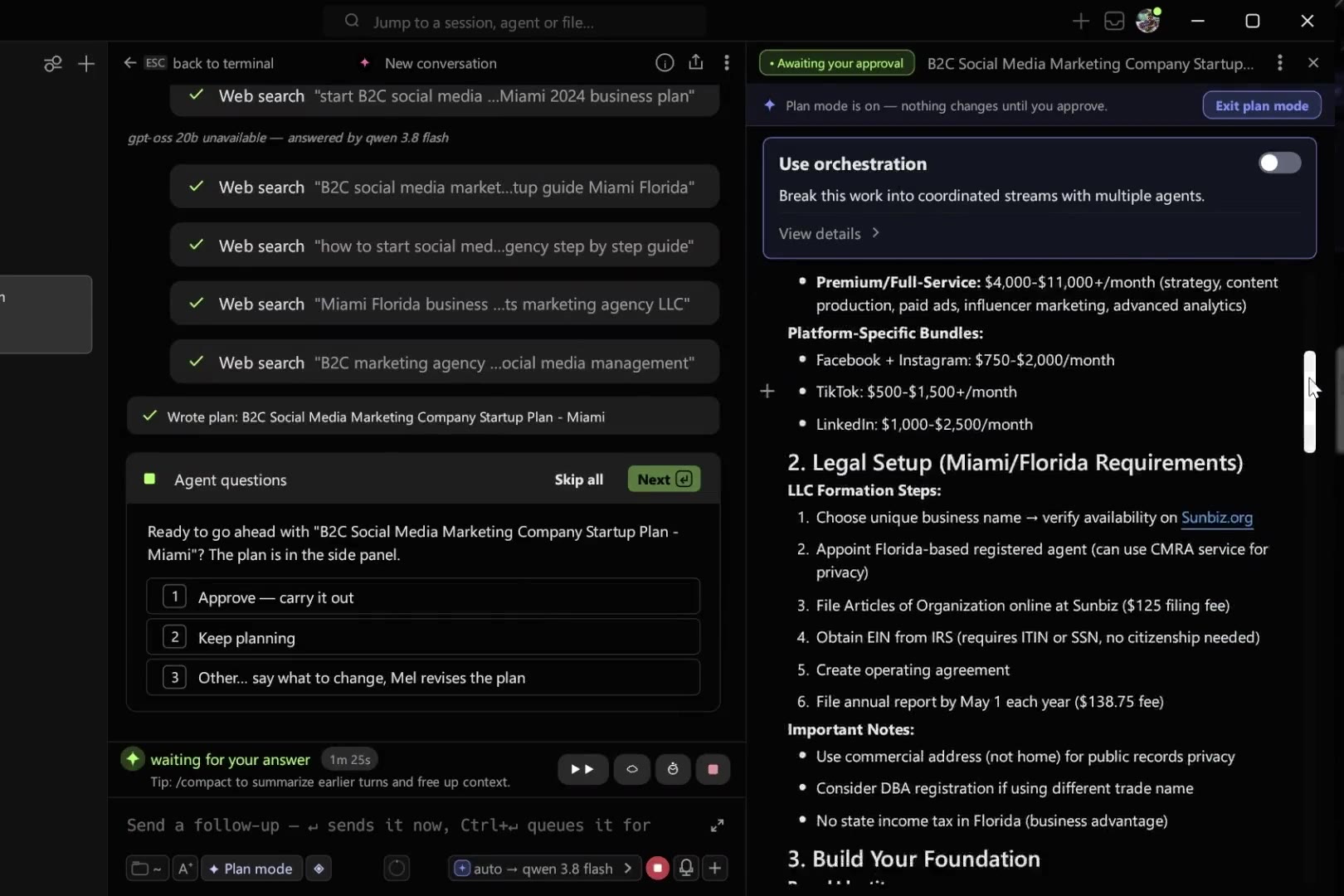
Start a plan
- Type
/planfollowed by the task to start a conversation where the agent researches and writes a plan first. - Or ask in plain words, for example "plan this first".
- The agent can also switch into plan mode by itself when a change is large enough that you should see its shape first.
While plan mode is on
- A ✦ Plan mode chip sits beside the agent input for as long as the mode lasts, and the transcript says "Plan mode is on — nothing changes until you approve."
- The plan appears in the ✦ Plan side panel, labelled with its state — *Awaiting your approval*, *In progress*, *Completed* or *Abandoned* — together with the prompt it was written for.
Ctrl+Alt+Phides or shows the panel. - You can edit the plan in the panel before you approve it.
- When the plan is ready, the transcript asks you to decide.
Approve, or keep planning
- Approve — carry it out ends plan mode, and the agent carries out the plan straight away.
- Keep planning leaves plan mode on so the agent can revise.
- Or answer in your own words to say what to change.
For a big build, the panel's Use orchestration switch has a lead agent split the approved plan into streams that worker agents run in their own panes. See Orchestration.
Leaving plan mode
Plan mode lasts across turns, so a plan can be researched over several messages. To leave at any time, even in the middle of a run, click the ✦ Plan mode chip or Exit plan mode in the plan panel's header.
If you type a new prompt instead of answering the approval, plan mode stays on and the transcript says so.
The plan stays as a record
A finished plan stays in the panel marked *Completed*, because it is the record of what was agreed. Close the panel with its ✕; that closes the panel only and does not change the mode.
Where a plan is kept
A plan is saved inside its conversation, with its state, so reopening the conversation brings the plan back as a read-only record. To keep a copy somewhere else, open the ⋯ menu in the plan panel's header:
| Menu item | What it does |
|---|---|
| Show in Mel Drive | Saves the plan to Mel Drive ▸ Plans and opens it there |
| Copy as Markdown | Copies the plan to your clipboard |
| Save as markdown file | Saves it as a .md file where you choose |
| Attach to active session | Saves it to Drive and attaches it to the conversation in the active pane |
| Remove plan | Removes the plan from the panel |
A plan saved to Drive stays there after the conversation ends; see Mel Drive.
Keyboard shortcuts
| Action | Windows and Linux | Mac |
|---|---|---|
| Hide or show the plan panel | Ctrl+Alt+P | ⌘⌥P |
| Approve the plan (question selected, message box empty) | Enter | ↵ |
Limitations
- Reopening a saved conversation does not restore plan mode. The agent is told plan mode ended with the earlier session, and the plan comes back as a read-only record.
FAQ
How do I make an AI agent plan before it codes? Type /plan and the task. Mel researches, writes the plan in the side panel and changes nothing until you click Approve.
Where can I find a plan later? In its conversation, or in Mel Drive ▸ Plans if you saved it there from the panel's menu.
Is plan mode the same as approvals? No. Approvals are about one action at a time. Plan mode holds every change until you approve the whole approach.
Does a plan cost credits? The research and the writing are agent turns like any other, so they are billed the same way. See Models & pricing.