Mel – the agentic terminal
The AI terminal for teams.
How to switch your team from Claude Code to Mel
November 1, 2026 · 4 min read
- Start with one person and one real project, then roll Mel out to the rest of the team.
- On the Free plan the agent runs on your own provider key; on Pro, Max or Business it runs on plan credits.
- You can keep Claude Code: Mel can run it in its team of agents, along with Codex.
- Set approvals as a team, then move to the Business plan for shared credits and one invoice.
Claude Code is a strong coding agent, and many developers like it. But when a whole team uses it, new questions come up: who pays for what, which models people can use, and how to keep control of what the agent runs. If you want to switch from Claude Code to a terminal built for teams, this step-by-step guide shows how to move your team to Mel without losing the tool people already know.
Why teams look beyond one agent
Claude Code is built around Anthropic's Claude models, and it works best with them. That is fine for one developer. A team often wants more:
- More than one model. Different steps can work better on different models.
- One bill. Separate subscriptions per person are hard to track.
- Shared rules. A team needs to decide what the agent may do on its own.
- Room for different habits. Some people will want to keep Claude Code, and others will prefer something else.
How do I move my team off Claude Code?
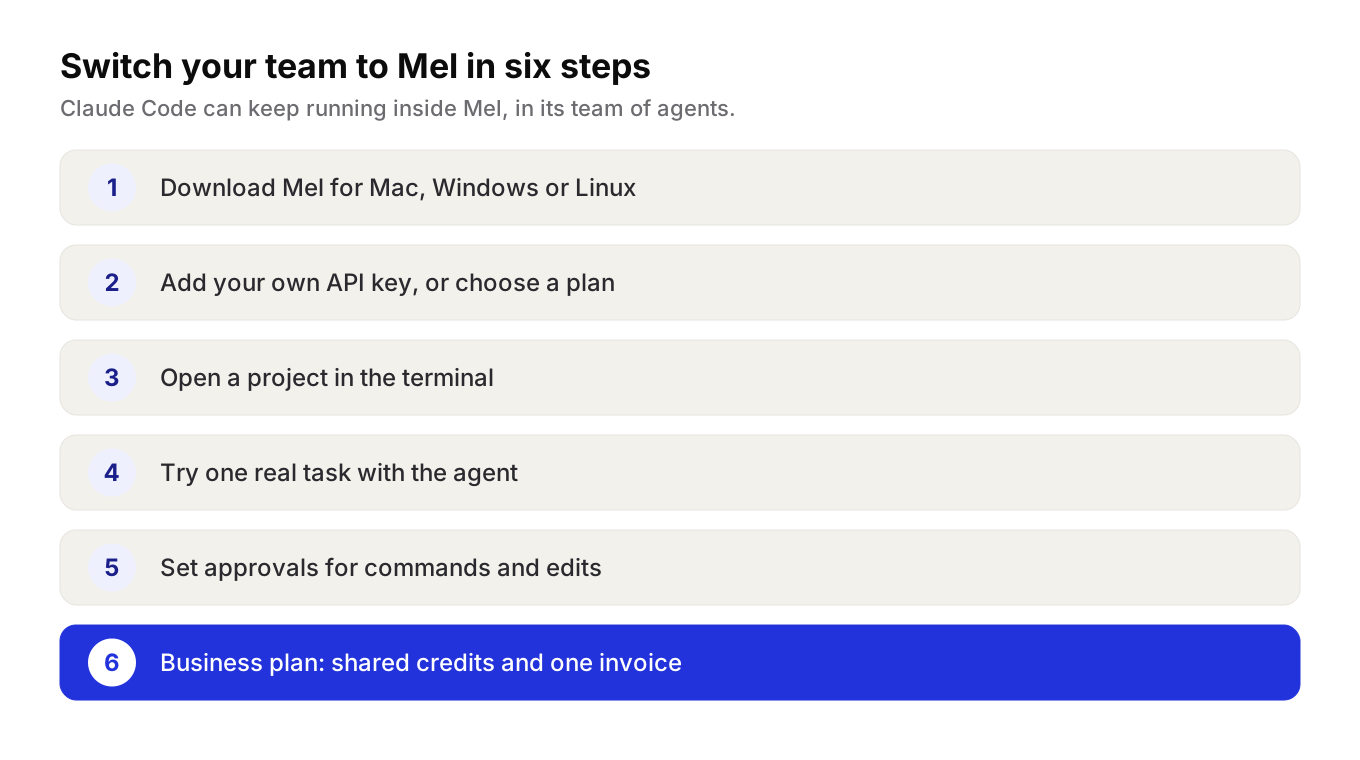
Start with one person and one real project, then roll Mel out to the team once the setup works. You do not need to switch everyone on the same day, and you do not need to stop using Claude Code.
1. Download Mel
Download Mel for Mac, Windows or Linux. On a Mac, move Mel.app to your Applications folder. On Windows, run the installer. On Linux, unpack the tarball and run mel. The terminal itself needs no account and no API keys.
2. Add your own key, or choose a plan
Mel's own AI agent needs a free Mel account. Then pick one of two paths:
- Your own key. On the Free plan, the agent runs on a provider key you add in Settings → AI, under Provider API keys. Mel is free this way, and your provider's usage charges apply.
- A plan. On Pro, Max or Business you do not need a key of your own. The agent runs on your plan's credits. See pricing.
3. Open a project
Open Mel and move into your project from the prompt, the same way you would in any terminal, for example cd ~/your-project. Commands you run show up as separate blocks, with their output and the folder they ran in.
4. Try a real task
Type a request and press ctrl+enter (cmd+enter on macOS) instead of enter. The pane becomes an agent conversation. Start with a question about the code, then ask for a small change. Every applied edit shows up as a diff card, so you can see exactly what changed.
Tip: pick a small bug your team already understands for the first task. It is the easiest way to judge the result fairly.
5. Set approvals
Configurable approvals keep you in control of commands and edits. When the agent wants to write a file or run a command, it shows an approval card. You can allow that one action, choose Always allow for that kind of action in the conversation, or deny it. Agree as a team on when people should use each choice, especially near production configs or code that is not committed yet.
6. Move the team to the Business plan
When the setup works for one person, bring in the rest of the team. The Business plan gives the whole team shared credits and one invoice, so you are not tracking a separate bill per developer.
Can I keep using Claude Code inside Mel?
Yes, Mel can run Claude Code in its team of agents, along with Codex, so a team keeps the tools it likes. In a Mel terminal, type claude and Claude Code runs as a full interactive session, using the Claude Code you already have installed.
This means nobody has to give up a tool they like on day one. A developer can keep using Claude Code in Mel, while a teammate uses Mel's own agent with a different model.
What changes, and what stays the same
| Before | After moving to Mel | |
|---|---|---|
| Your terminal habits | Your usual terminal | The same commands, in Mel |
| Claude Code | Run on its own | Still there, and Mel can run it in its team of agents |
| Models | Built around Claude | Claude, GPT, Gemini, DeepSeek and Qwen |
| Control | Each person's own settings | Configurable approvals for commands and edits |
| Billing | Often one bill per person | Business: shared credits and one invoice |
A few things to keep in mind:
- Mel runs on Mac, Windows and Linux, and there is a VS Code extension for people who work in the editor.
- The app is in English.
- Plan the rollout. One person first, then a small group, then the team.
Try Mel
Download Mel for free on Mac, Windows or Linux, or book a 15-minute demo to plan the switch with us.

Lalla is a hands-on tech founder, agentic infrastructure architect and the vision behind Mel.
Follow on LinkedIn